

©2026 ZenABM - All Rights Reserved.
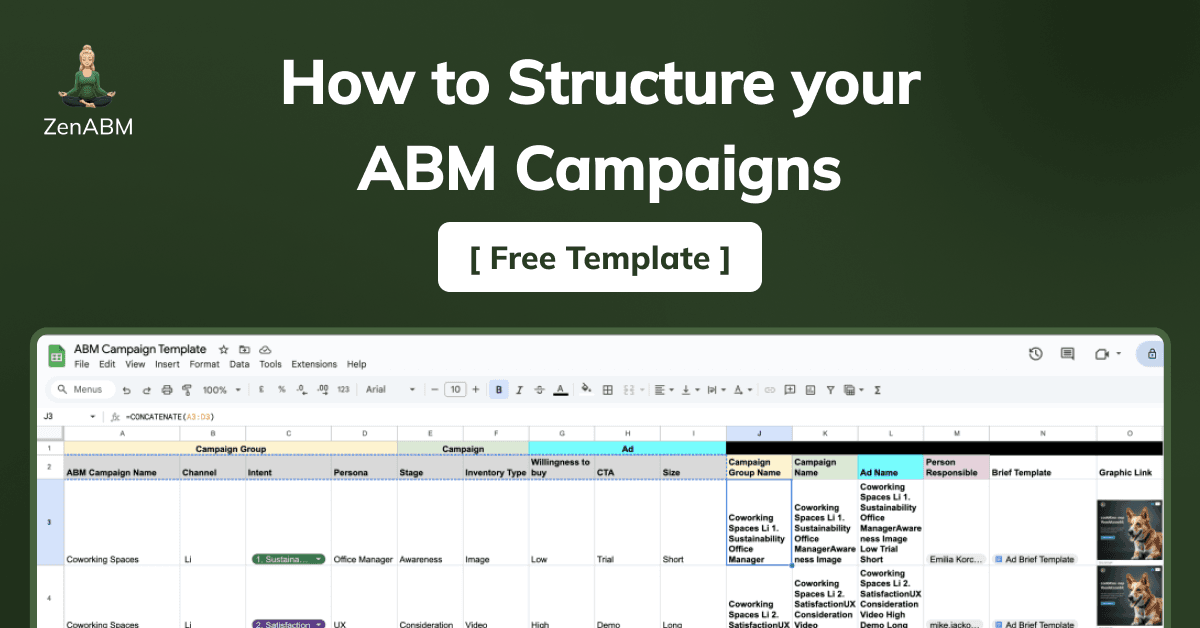
I’m planning to launch 17 new ABM campaigns for Userpilot this month – that’s 17 x ~at least 10 ads, so ~ 170 ad assets to create, manage and launch 🤯 Needless to say, I wouldn’t be able to do this without ABM campaign templates – and in general having systems for managing the ABM campaigns – both in terms of structure, project management and asset creation.
So today I’ll walk you through how I organize and structure our ABM campaigns (which is critical for maximizing the results from the campaigns) and how I manage the project + give you an easy ABM campaign template in Notion and Google Sheets you can use to manage your campaigns.
Personally, I use a Notion database to manage our ABM campaign asset creation (and project management in general). It’s convenient because for each row (each database entry) – you can load a different asset brief template for your graphic designer to follow, assign the asset owner, asset graphic designer and ad launcher to each ad, and to generate the campaign group, campaign and ad name including all the information you need to keep them “in order”.

Our databased is quite complicated and has a lot of automations and properties, but to make things easier for you – I’ve created these two templates you can just copy & apply to your ABM motion:
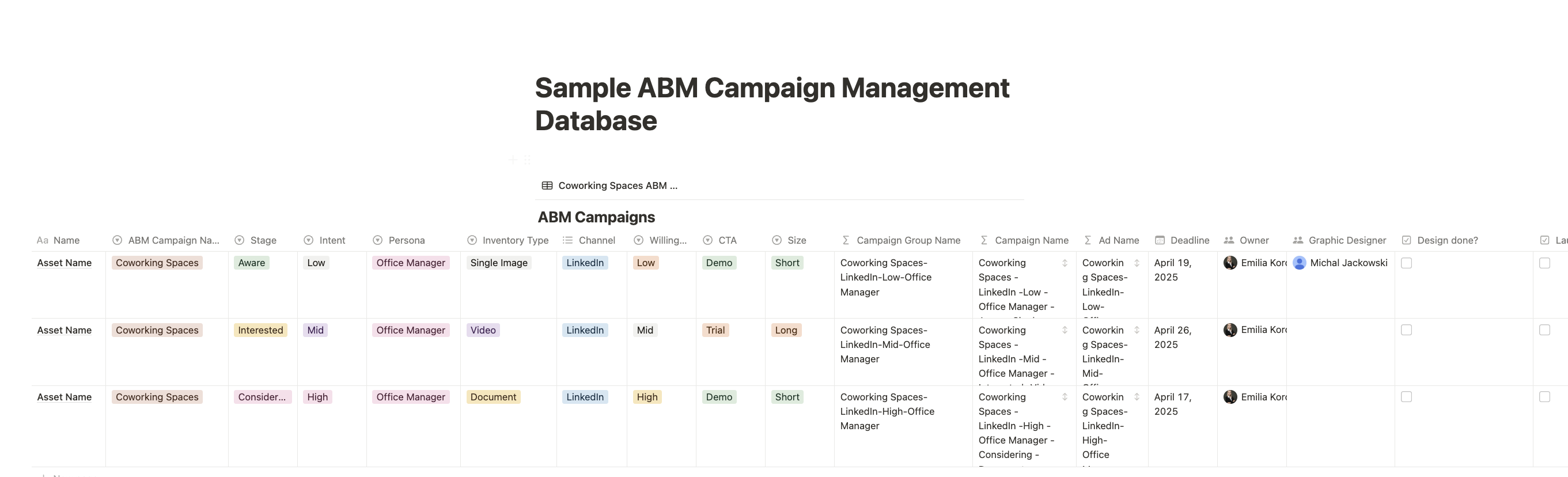
View & Copy the Notion ABM Campaign template here.
And for those of you who don’t use Notion – I created an even simpler ABM campaign template in Google Sheets – the problem with this one is that you’ll need to upload the brief template from a separate Google Doc file, and ad graphic as well:
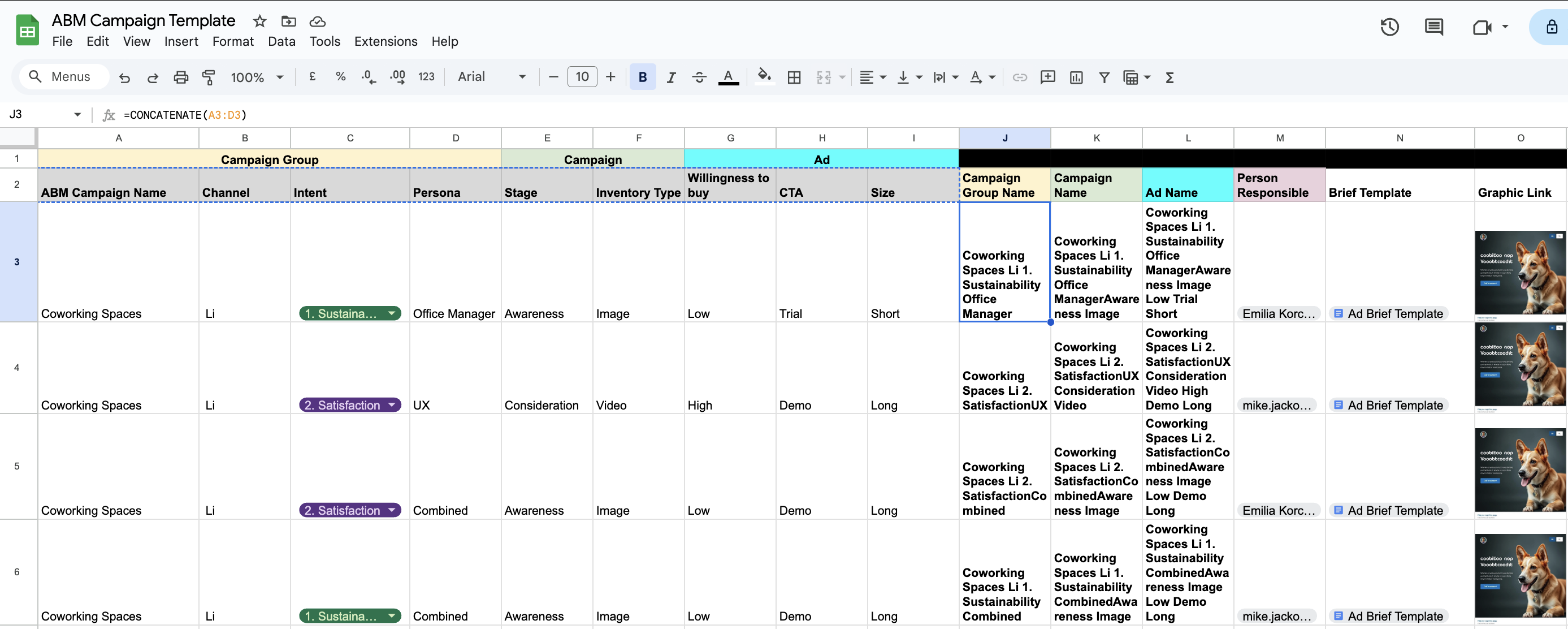
Download this ABM Campaign Management Template in Google Sheets here.
Ok, now – you may be probably scratching your head how these “ABM Campaign Templates” even work – and why you need all those properties and formulas. Well, for that to make sense for you I need to explain how the ABM Campaign “Object” works.
First of all – if you’re just starting out your ABM journey, the difference between “ABM Campaign”, “LinkedIn Campaign Group”, “LinkedIn Campaign” and “LinkedIn ad” may be a bit confusing. I’m not using these interchangeably. Each of those is a structural element and plays a function in identifying which companies engaged with your ads and intent behind their engagements.


Right, so as I said – not to end up in hot mess when you start running multiple ABM Campaigns – you need to have a structured campaign template, that generates the Campaign Group Names, Campaign Names, and Ad names automatically based on certain criteria (properties) you use to distinguish a) the target audience b) intent c) asset type etc.
There’s also another reason – in order to track the company level engagements with specific Campaign Groups/ Campaigns (impressions, engagements, clicks per campaign per company) – from LinkedIn API (e.g. with ZenABM) you need to get the minimum number of 3 engagements from 3 different members of the company you’re targeting with the ads. This is because of LinkedIn API’s privacy policy and data obfuscation so you can’t identify who exactly clicked on your ads from the target account.
So – since Campaign Groups are a “higher order” structure and all the engagements from Campaigs “roll up” (or feed into) them – there is a much higher chance that you will pass the minimum engagement threshold on Campaign Group than Campaign Level.

Ok so last but not least – what properties should you include in the ABM Campaign Management Template and how should you structure the names?
What it is:
This is your umbrella title—a clear and concise way to capture the overall ABM initiative. Think of it as the theme for a go-to-market move, whether you’re targeting the US vs. the German market or distinct buyer types.
Why you need it:
It instantly groups all underlying assets (ads, creatives, etc.) into one mission. No more guessing games when you need to report on the campaign as a whole or adjust your strategy down the line.
The designated marketing platform for the asset, such as LinkedIn, Email, Facebook Ads, or any other channel where your audience is active.
A descriptor that pinpoints the target engagement level, such as “Awareness,” “Consideration,” or “Decision.” It reflects where you expect your account to be in the buying journey.
Actually if you’re using ZenABM, you can simply “map” certain “intents” to your campaign groups (recommended – due to the privacy limitations I explained above!) or campaigns – it will be a lot easier for you to find the right ones and “link” them into one “intent” folder if they include the “intent” keywords in their name!

All the companies indentified in your different campaigns that engaged with the labelled campaign will be then “marked” with these “intents”:
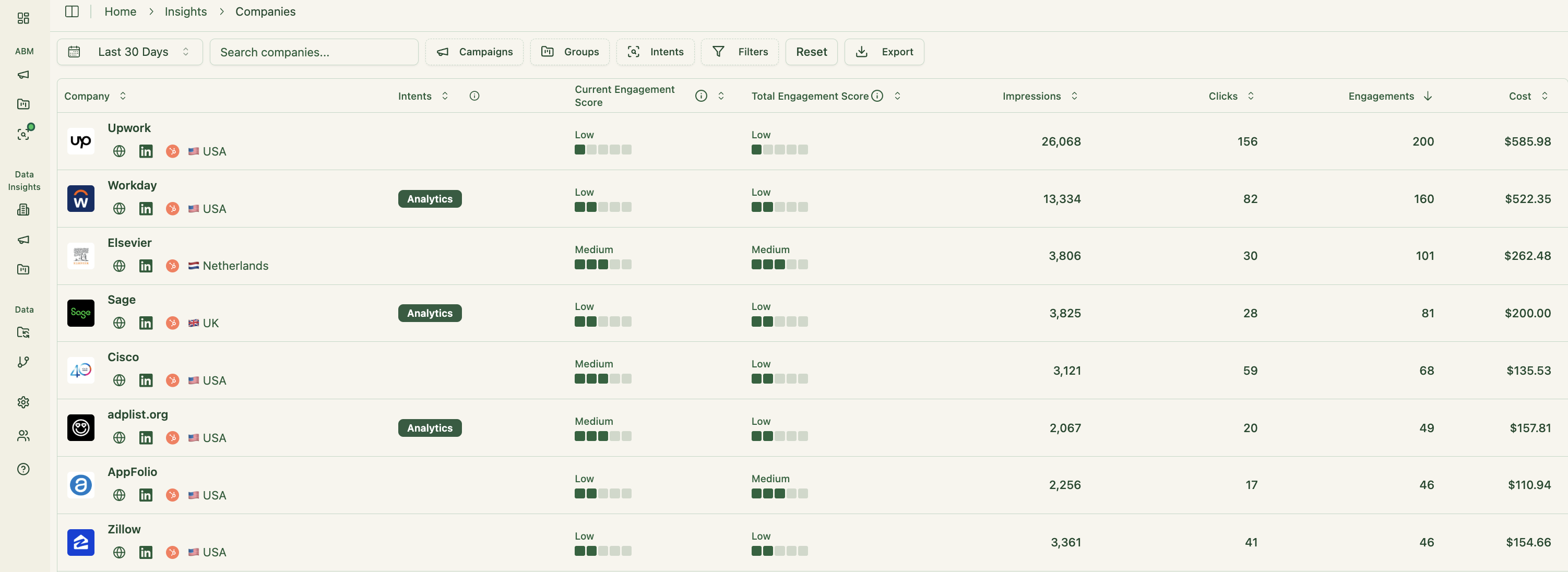
This is then pushed into Hubspot as a company checkbox property “ZenABM Intent”:
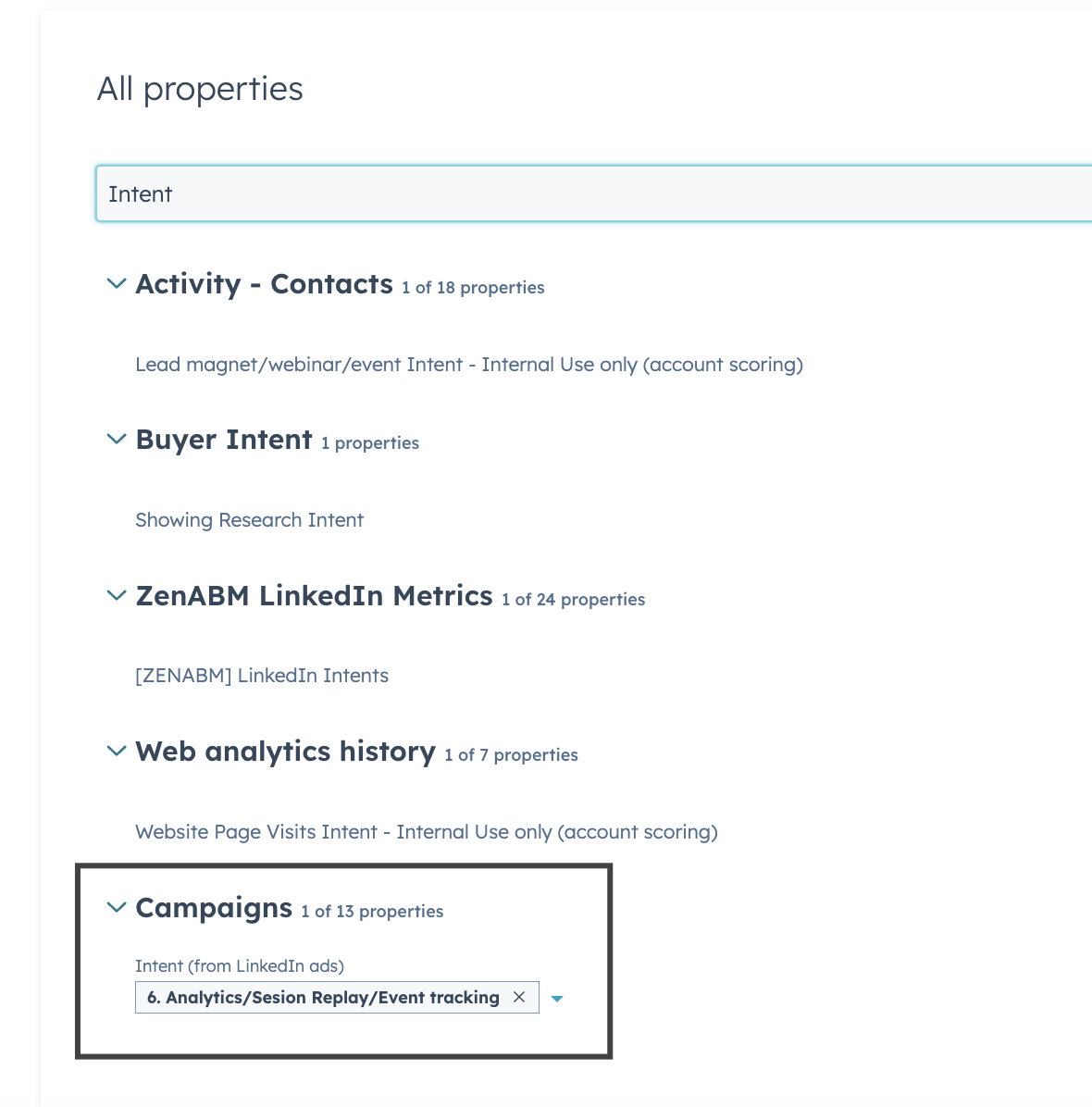
You can use it to create workflows to personalize your BDR outreach or funnel the prospects you’ve created in these companies into the right email sequences based on their intent.
The detailed profile of the target audience or job role—think “Office Manager,” “SaaS Executive,” or “IT Director.”
Why you need it: ABM is all about personalization. Identifying the persona ensures that every asset (copy, design, tone) is tailored to address specific pain points and motivations, making your campaigns much more effective.
The buyer’s journey stage for each asset—whether it’s top-of-funnel awareness or bottom-of-funnel conversion.
Why you need it: Different stages call for different approaches & different level assets. E.g. at the awareness stage you want to talk about problems, and be more click baity and visual. But if someone has booked a demo or has an open deal already…you want to hit them with case studies, testimonials and product-led visuals.
The format or asset type you’re using—be it a single image, a video, a carousel, or even a document ad. With each inventory type come specific creative requirements and production needs. This property avoids mix-ups and ensures every asset is created to the correct specifications/ format requirements for its platform.
A qualitative (or sometimes quantitative) measure of a lead’s or account’s readiness to purchase. It might be labeled as “Low,” “Medium,” “High,” or even “Hot.”
Prioritizing your efforts is key, and this property helps you quickly identify which accounts are more likely to convert. That way, you can direct your resources and creative energy toward prospects with higher buying signals.
The specific instruction you give to your target audience—like “Schedule a Demo,” “Download Now,” or “Contact Sales.”
A clear CTA is non-negotiable. It ensures that every ad asset drives a specific, measurable outcome. By tracking CTAs, you can analyze what messaging or offer works best for your audience.
The creative dimensions or asset specifications (for instance, 1080×1080 for social media, 1200×628 for LinkedIn ads). Different platforms require different sizes. Including this property prevents any last-minute design hiccups, ensuring that every asset is optimized for its intended channel.
In a nutshell – if you don’t want to end up in a hot mess and accidentally put the wrong assets into the wrong campaign groups, and you want to maximize intent insights from your campaigns – use the ABM Campaign Templates I’ve created for you above!
Again:
ABM Campaign Management Template in Google Sheets
Have fun and let me know if you have any questions on LinkedIn!
